A platform for developing and running applications that separates the code you’re running from your main system using a “container”, which is a loosely-isolated system.
The docker client docker talks to the docker daemon which does the heavy lifting of building, running and distributing your docker containers. These can run on the same system, or you can have dockerd on a remote. Another docker client is Docker Compose which is used to work with apps consisting of a set of containers.
Docker daemon: listens for Docker API requests and manages docker objects, such as images, containers, networks and volumes (explained below).
Docker client: docker - you use this to interact with docker and it sends commands to dockerd which carries them out.
There’s also a GUI with docker desktop.
Docker hub: a public registry for docker images (explained below) which is used by default by docker. You can have your own private registry. docker pull or run are used to pull the required images from the registry, while push pushes them to the configured registry.
Objects in Docker
Images: read only template with instructions for creating a docker container, a blueprint of sorts. Often an image is based on another image, with additional customisations. Ex. an image based on the Ubuntu image that includes the Apache web server and your application, as well as the config details to make your app run. To build your own images, you create a Dockerfile with simple syntax that defines the steps needed to create the image and run it. Each instruction creates a layer in the image, but when you change the file and rebuild the image, only the changed layers are rebuilt, which is why it feels fast and lightweight.
Containers: a runnable instance of an image. If an image is a class, a container is an object of that class. You can create, start, stop and delete a container using the CLI or API. You can connect these to networks or attach storage (volumes) to it, or create new images based on its current state. You can even control how isolated a container is. A container is defined by the image, as well as the options you provide it when you create or start it. When a container is removed, any changes to its state that aren’t stored in a persistent storage are gone. See volumes.
ex. docker run -i -t ubuntu /bin/bash
when this is run,
- if you don’t have the ubuntu image locally, docker pulls it off the registry as though you had run docker pull ubuntu
- docker creates a new container, as though you had run docker container create manually
- docker allocates a read-write filesystem to the container as its final layer, which allows for you to create or modify files and directories in the container’s local filesystem.
- docker creates a network interface to connect the container to a default network, since a network option wasn’t specified. This includes assigning an IP address and connecting to host machine’s networks by default.
- docker starts the container and execs /bin/bash. The -i flag means that it’s running interactively, and the -t means that it’s attached to your terminal. So you can provide input using your keyboard, while docker logs the output to your terminal.
- when you run exit to exit from bash, the container stops but isn’t removed. You can start it again or remove it.
Docker internally uses namespaces to provide the containers, or isolated workspaces. When you run a container, docker creates a set of namespaces for the container. This is part of the reason I wasn’t able to run docker on android, because of namespace restrictions. These namespaces provide a layer of isolation. Each aspect of the container is run in a separate namespace and is limited to that namespace.
NOTE
To avoid this just add the current user to the docker group. Run
sudo usermod --append --groups docker $USERto add the current user to the docker group and thennewgrp dockerto log into the new group for the current user.
Basic concepts
Containers
Say you have an application that has three main components - a Svelte frontend, a Python API and a PostgreSQL database. If you wanted to work on this project, you would have to install Node, Python and PostgreSQL. To streamline the process of developing on and sharing these applications, we can use containers. They resolve problems like making sure you have the same version as other developers on your team, managing potential conflicts, etc.
Containers are isolated processes for each of your app’s components. Each component - the Svelte app, the Python API engine and the database runs in its own isolated environment, isolated from everything else from your machine.
Containers are self-contained (means they have everything they need to function without any reliance on pre-installed dependencies), isolated (minimal influence on host), independent (deleting one won’t affect the others) and portable (can run anywhere).
Are these like VMs? - VMs are entire operating systems with their own kernel, hardware drivers, programs and applications. Spinning up a VM only to isolate a single application is a lot of overhead. A container is simply an isolated process with all of the files it needs to run. If you run multiple containers, they all share the same kernel and allow you to run more applications on less infrastructure.
Images
A container is an isolated process - but where does it get its files and configuration? How do you share those environments? This is where images come in. A container image is a standardized package that includes all of the files, binaries, libraries and configurations to run a container.
For a python app for example, it will include the python runtime, your app and all of its dependencies.
- Images are immutable - once an image is created, it cannot be modified. You can only make a new image or add changes on top of it.
- Container images are composed of layers - each layer represents a set of file system changes that add, remove or modify files.
For example, if you’re building a python app, you can start from the python image and add additional layers to install your app’s dependencies and add your code. This lets you focus on your app, rather than python itself.
You can find images on Docker Hub.
Registries
Image registries are a centralized location for storing and sharing your container images. These can be public or private. Docker Hub is a public registry anyone can use and is the default registry. There are other container registries too, like Amazon Elastic Container Registry (ECR), Azure Container Registry (ACR) and Google Container Registry (GCR). You can even run your private registry on your local system or inside your organization. For ex., Harbor, JFrog Artifactory, GitLab Container registry, etc.
Registries vs. Repositories
A registry is a centralized location that stores and manages container images, whereas a repository is a collection of related container images within a registry. Think of it as a folder where you organize your images based on projects. Each repository contains one or more container images.
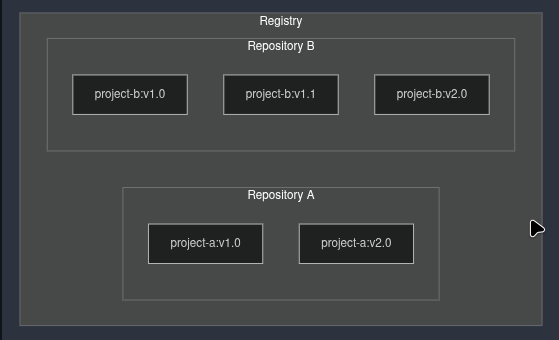
Say that you’ve created a repository on Docker hub by the name of docker-quickstart. If you have a Dockerfile in the root folder of your demo application, you can use docker build -t YOUR_DOCKER_USERNAME/docker-quickstart . to build a docker image.
NOTE
I am assuming that you have
buildx- the new build tool - installed already. If not, usesudo pacman -S docker-buildxto install it and check version viadocker buildx version. Thensudo systemctl restart docker.
Docker Compose
Till now we have looked at single container applications - but if we want to run databases, message queues, caches or a variety of other services, do we install everything in a single container or run multiple? If we run multiple containers, how would we connect them all together?
One best practice for containers is that each container should do one thing and do it well. Avoid the tendency to have one container do multiple things. You can use multiple docker run commands to start multiple containers, but soon you will realize that you will have to manage networks, all of the flags needed to connect containers to those networks, and more.
With Docker Compose, you can define all of your containers and their configurations in a single YAML file. If you include this file in your code repository, anyone that clones your repository can get up and running with a single command.
Compose is a declarative tool - you simply define it and go. You do not always need to recreate everything from scratch. If you make a change, run docker compose up again and Compose will reconcile the changes in your file and apply them intelligently.
Dockerfile
A Dockerfile provides instructions to build a container image while a Compose file defines your running containers. Quite often, a Compose file references a Dockerfile to build an image to use for a particular service.
An example of a compose file I made for magpie:
name: magpie
services:

  backend:
    build: ./backend/
    ports:
      - "127.0.0.1:8000:80"
    environment:
      - YOUTUBE_API_KEY=${YOUTUBE_API_KEY}
      - PLAYLIST_ID=${PLAYLIST_ID}
    develop:
      watch:
        - action: sync
          path: ./backend/
          target: /app/backend/
          # we have already ignored stuff in .dockerignore
        - action: rebuild
          path: ./backend/pyproject.toml
        - action: rebuild
          path: ./backend/uv.lock
    volumes:
      - sqlite:/app/backend/database/

  frontend:
    build: ./frontend/
    ports:
      - "127.0.0.1:5173:90"
    environment:
      - VITE_API_URL=${VITE_API_URL}
    develop:
      watch:
        - action: sync
          path: ./frontend/
          target: /app/frontend/
          # we have already ignored stuff in .dockerignore
        - action: rebuild
          path: ./frontend/package.json
        - action: rebuild
          path: ./frontend/package-lock.json
volumes:
  sqlite:
    name: sqlite_volume
This makes sure that --watch works too! It also attaches a persistent volume named sqlite_volume which handles the database. More on volumes later!
If we are pulling images from the registry instead, we can use image instead of build.
name: magpie
services:
  backend:
    image: cosmognaut/magpie-backend:v1
    ports:
      - "127.0.0.1:8000:80"
    environment:
      - YOUTUBE_API_KEY=${YOUTUBE_API_KEY}
      - PLAYLIST_ID=${PLAYLIST_ID}
    volumes:
      - sqlite:/app/backend/database/

  frontend:
    image: cosmognaut/magpie-frontend:v1
    ports:
      - "127.0.0.1:5173:90"
    environment:
      - VITE_API_URL=${VITE_API_URL}
volumes:
  sqlite:
    name: sqlite_volume
Building images
Image layers in Docker
We know that container images are composed of layers. And each of these layers, once created, is immutable. But what does that mean, and how are those layers used to create the filesystem a container can use?
Each layer in an image contains of a set of filesystem changes - additions, deletions or modifications. Let’s look at a theoretical image:
- The first layer adds basic commands and a package manager, such as
apt. - The second layer installs a python runtime and pip for dependency management.
- The third layer copies in an application’s specific
requirements.txtfile. - The fourth layer installs that application’s specific dependencies.
- The fifth layer copies in the actual source code of the application.
For ex.
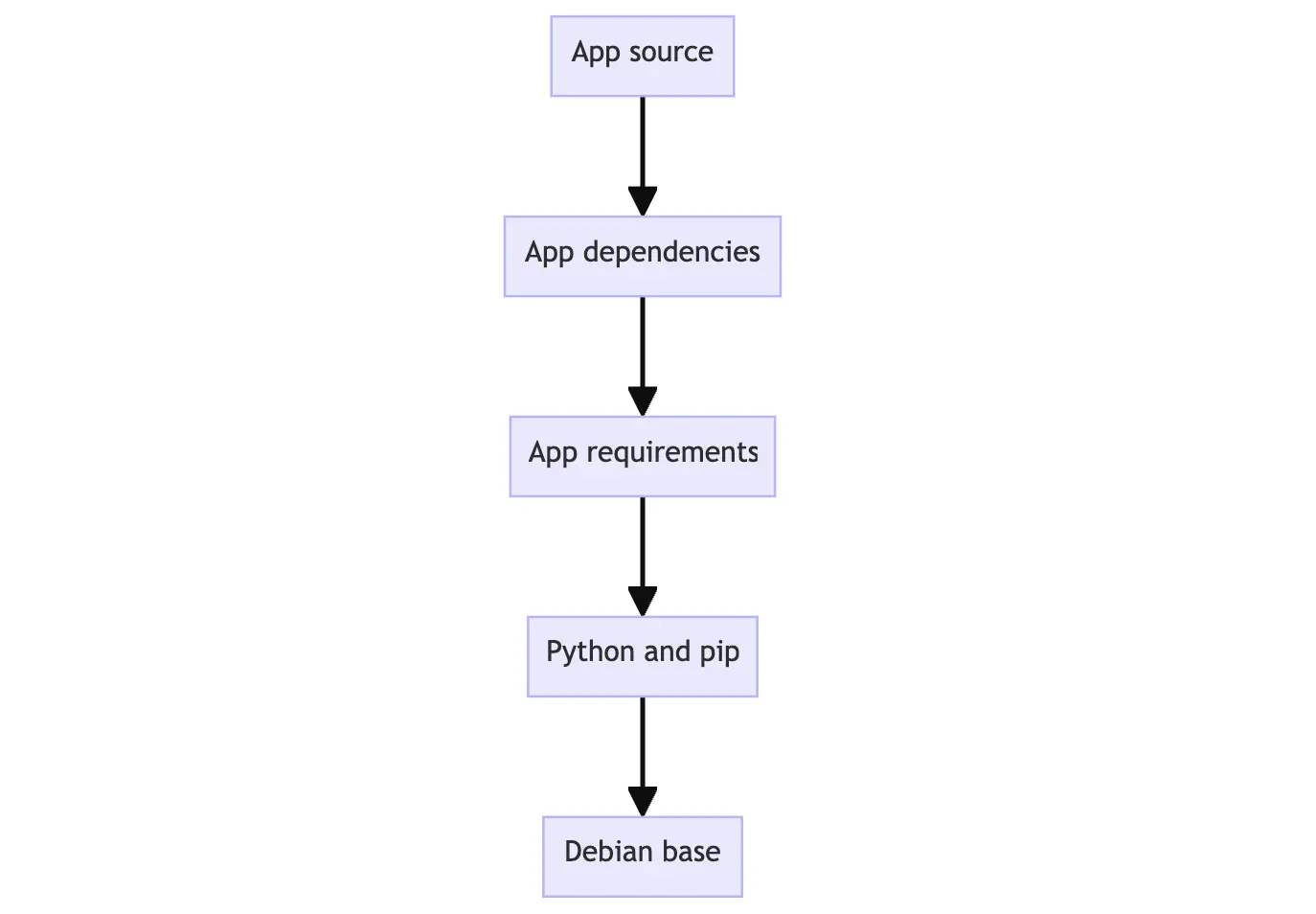
This is beneficial because it allows layers to be reused between images. For example, if you wanted to create another python application; due to layering you can leverage the same python base. This will make builds faster and reduce the amount of storage and bandwidth required to distribute the images. The image layering could look similar to:
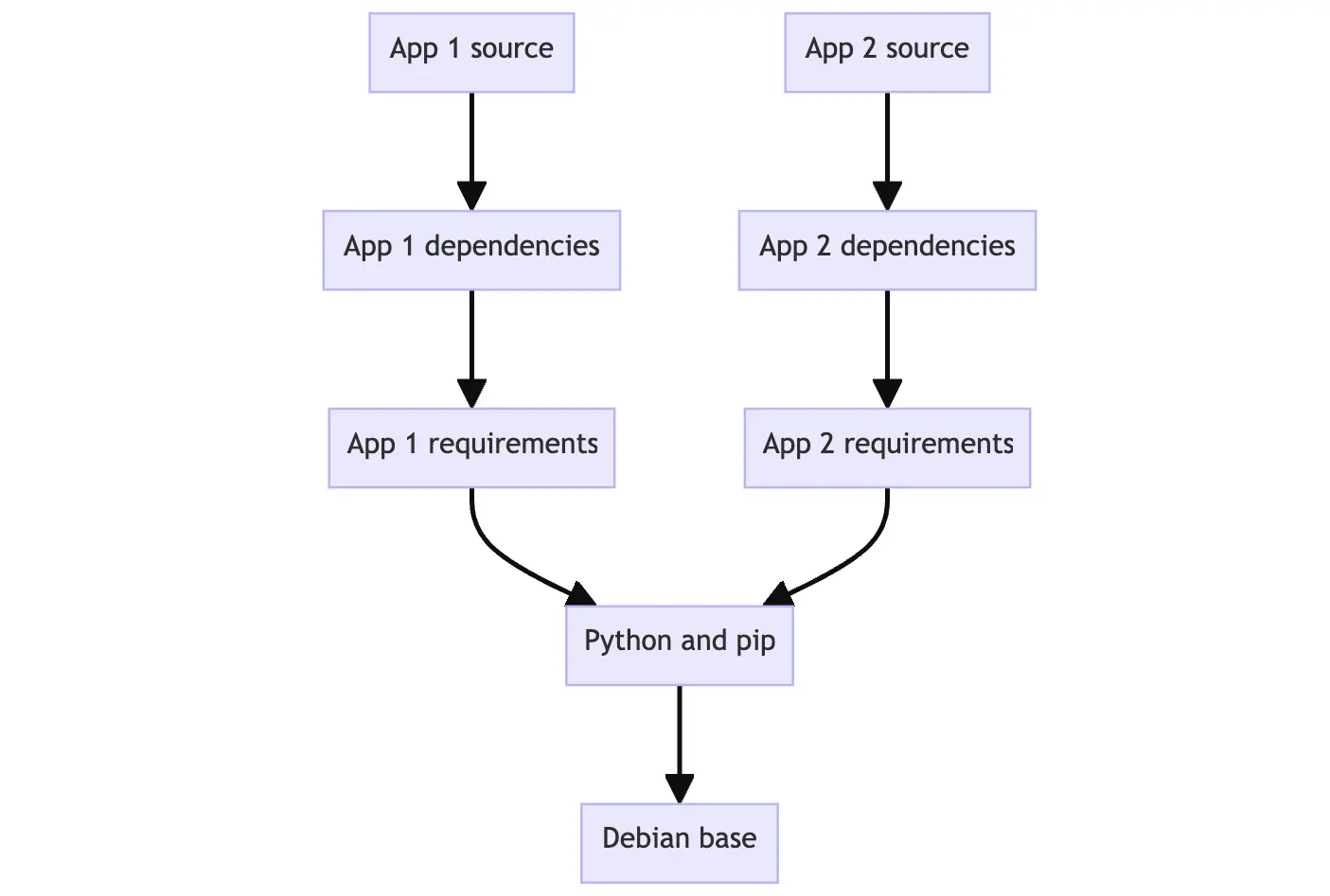
Layers let you extend images of others by reusing their base layers, allowing you to only add the data that your application needs.
Stacking the layers
Layering is made possible by content-addressable storage and union filesystems.
- After each layer is downloaded, it’s extracted from its own directory on the host filesystem.
- When you run a container from an image, a union filesystem is created where layers are stacked on top of each other, creating a new and unified view.
- When the container starts, its root directory is set to the location of this unified directory using
chroot.
When the filesystem is created, in addition to the image layers, a directory is created specifically for running the container. This allows the container to make filesystem changes while allowing the original image layers to remain untouched. This enabled you to run multiple containers from the same underlying image.
Base images: A base image is a foundation for building other images. Some images are intentionally created as building block, providing a starting point for an application. Ex., something like node-base. See the “Working with image layers” heading for more details.
Dockerfile
It’s a text based document that’s used to create a container image. It provides instructions to the image builder on the commands to run, files to copy, startup command and more.
For ex., this Dockerfile produces a readu to run python appliction:
FROM python:3.13
WORKDIR /usr/local/app

# Install the application dependencies
COPY requirements.txt ./
RUN pip install --no-cache-dir -r requirements.txt

# Copy in the source code
COPY src ./src
EXPOSE 8080

# Setup an app user so the container doesn't run as the root user
RUN useradd app
USER app

CMD ["uvicorn", "app.main:app", "--host", "0.0.0.0", "--port", "8080"]
Some of the most common instructions in a Dockerfile include:
FROM <image>- specifies the base image that the build will extend.WORKDIR <path>- this instruction specifies the working directory or the path in the image where files will be copied and commands will be executed.COPY <host-path> <image-path>: tells the builder to copy files from the host and put them into the container image.RUN <command>: this instruction tells the builder to run the specified command.ENV <name> <value>: sets an environment variable that a running container would use.EXPOSE <port-number>: sets the configuration on the image that indicates a port the image would like to expose.USER <user-or-uid>: Sets the default user for all subsequent interactions.CMD ["<command>", "<arg1"]: sets the default command a container using this image would run.ENTRYPOINT ["executable"]: sets an entrypoint for the application when a container finally runs.
Check out the reference for more details.
Generally, to create a Dockerfile, follow the below steps:
- Determine your base image
- Install application dependencies
- Copy in any relevant source code and/or binaries
- Configure the final image
An example of a Dockerfile I wrote for the magpie backend that used multi-stage builds:
# First we start with the base python image and install uv. Then, we need to seed the SQLite database using a script.
FROM python:3.14 AS builder
WORKDIR /app/backend/
# install uv first
COPY --from=ghcr.io/astral-sh/uv:latest /uv /uvx /bin/
COPY pyproject.toml uv.lock ./
RUN uv sync
COPY . .

# this stage requires the .env file
FROM python:3.14 AS runner
WORKDIR /app/backend/
COPY --from=builder /app/backend/ /app/backend/
RUN chmod +x /app/backend/docker-entrypoint.sh
ENV PATH="/app/backend/.venv/bin:$PATH"
ENTRYPOINT ["/app/backend/docker-entrypoint.sh"]
The ENTRYPOINT was quite interesting - I used it to run a script whenever the backend container would start.
And for the frontend, I utilised a single stage build:
# First, we take the node base image and have this build stage where we build the application
FROM node:24-alpine AS builder
WORKDIR /app/frontend/
COPY package.json package-lock.json ./
RUN npm ci
COPY . .
CMD ["npx", "vite", "--host", "--port", "90"]
Note that we copy package.json et. al. first to utilise the build cache.
Building, tagging and publishing images
We can build an image based on a Dockerfile using docker build .. The . means that the Dockerfile and other referenced files are in the current directory - this is for the build context.
When you run a build, the builder pulls the base image, if needed, and then runs the instructions specified in the Dockerfile.
With the previous command, the image will have no name, but the output will provide the ID of the image.
Tagging images
Tagging images is the method to provide an image with a memorable name. However, there’s a structure to the name of an image. A full image name has the following structure:
[HOST[:PORT_NUMBER]/]PATH[:TAG]HOST- the optional registry hostname where the image is located. If no host is specified, Docker’s public registry atdocker.iois used by default.PORT_NUMBER: The registry port number if a hostname is provided.PATH: the path of the image consisting of slash-separated components. For Docker Hub the format follows[NAMESPACE/]REPOSITORYwhere namespace is either the user’s or organization’s name. If no namespace is specified,libraryis used, which is the namespace for Docker Official images.TAG: a custom, human-readable identifier that’s typically used to identify different versions or variants of an image. If no tag is specified,latestis used by default.
To tag an image during build use the -t or --tag flag.
docker build --tag my-username/my-image .If you’ve already built an image, you can add another tag to the image by using docker image tag.
docker image tag my-username/my-image another-username/another-image:v1Publishing images
Just use
docker push my-username/my-imageWithin a few seconds all of the layers for the image will be pushed to the registry.
Utilizing the build cache for optimizations
For each instruction that’s in your Dockerfile, docker checks if it can reuse the instruction from a previous build. If it finds that you’ve already executed a similar instruction before, docker doesn’t redo it. Instead, it will use the cached result. This way, your build process becomes faster and more efficient, saving time and resources.
But before using build cache, we need to understand how cache invalidation works. A few examples of situations that can cause cache to be invalidated.
- Any changes to the command of a
RUNinstruction invalidates that layer. Docker detects the change and invalidates the build cache if there’s a modification to aRUNcommand in your Dockerfile. - Any changes to files copied into the image with the
COPYorADDinstructions. Docker keeps an eye on any alterations to files within your project directory. Whether it’s a change in content or properties like permissions, docker considers these modifications as triggers to invalidate the cache. - Once one layer is invalidated, all following layers are also invalidated. If any previous layer, including the base image or intermediary layers has been invalidated due to changes, docker ensures that subsequent layers relying on it are also invalidated. This makes the build process synchronized and prevents inconsistencies.
An example:
Consider this simple Dockerfile
FROM node:22-alpine
WORKDIR /app
COPY . .
RUN yarn install --production
CMD ["node", "src/index.js"]
Do the yarn dependencies need to be reinstalled on every subsequent build? No. Thus, we will first copy over the package.json and yarn.lock files and then install dependencies. You will want to re-install dependencies first only if that files changes (ex. package.json changing), and use cached dependencies if the file is unchanged. So, start by copying only that file first, then install dependencies, and finally copy everything else. Then you only need to recreate the yarn dependencies only if there was a change to package.json file.
Thus, we can update the Dockerfile to first copy in the package.json file first, install dependencies, and then copy in everything else.
You can also add a .dockerignore having only node_modules folder.
Thus the final Dockerfile looks like this:
FROM node:22-alpine
WORKDIR /app
# copy in the dependencies files first because we don't need to reinstall everything on every build
COPY package.json yarn.lock ./
RUN yarn install --production
COPY . .
EXPOSE 3000
CMD ["node", "src/index.js"]
Multi-stage builds
In a traditional build all build instructions are executed in a sequence and in a single build container: downloading dependencies, compiling code, and packaging the application. All those layers end up in your final image. This works, but it leads to bulky images carrying unnecessary weight and increasing your security risks. This is where multi-stage builds come in.
Multi-stage builds introduce multiple stages in your Dockerfile, each with a specific purpose. Think of it as being able to run multiple parts of your build in multiple different environments, concurrently. By separating the build environment from the final runtime environment, you can significantly reduce the build size and attack surface.
This is recommended for all types of applications.
- for interpreted languages like JavaScript and Python, you can build and minify your code in one stage, and copy the production-ready files to a smaller runtime image. This optimizes your image for deployment.
- for compiled languages like C, Rust and Go, multi stage builds let you compile in one stage and copy the compiled binaries into a final runtime image. No need to bundle the entire compiler in your final image.
A simplified example of a multi-stage build:
# Stage 1: Build Environment
FROM builder-image AS build-stage
# Install build tools (e.g., Maven, Gradle)
# Copy source code
# Build commands (e.g., compile, package)

# Stage 2: Runtime environment
FROM runtime-image AS final-stage
#  Copy application artifacts from the build stage (e.g., JAR file)
COPY --from=build-stage /path/in/build/stage /path/to/place/in/final/stage
# Define runtime configuration (e.g., CMD, ENTRYPOINT)
Note that there are multiple FROM statements and a new AS <stage-name>. In addition, the COPY statement in the second stage is copying --from the previous stage.
- The build stage here uses a base image containing build tools needed to compile your application. It includes commands to install build tools, copy source code, and execute build commands.
- The final stage uses a smaller base image suitable for running your applications. It copies the compiled artifacts (a JAR file for ex.) from the build stage. Finally, it defines the runtime configuration using
CMDorENTRYPOINTfor starting your application.
Some commands
A list of some useful commands while working with docker.
Working with containers
docker ps -ato check which containers are running right now the-amakes it show all containers, even ones that are not runningdocker stop <container id>makes a container stop running. You don’t have to provide the entire ID, just the part that makes it unique, ex.e932instead ofe9329fe3f140. Similarly,docker rm <container id>deletes that container.
Working with images and Docker Hub
docker image lsto check which images are present, anddocker image rmto prevent them from being storage space hogs. To build an image you can usedocker build -t YOUR_DOCKER_USERNAME/YOUR_REPO_NAME .We use a.here because we assume that theDockerfileis in the root folder. To run an image you can usedocker imagesordocker image lsfirst to check the name and then rundocker run --detach -p 8080:8080 YOUR_DOCKER_USERNAME/YOUR_REPO_NAME.- Use the
docker tagcommand to tag a docker image. Docker tags allow you to label and version your images. Usedocker tag YOUR_DOCKER_USERNAME/YOUR_REPO_NAME YOUR_DOCKER_USERNAME/YOUR_REPO_NAME:1.0for example. - To push a newly built image to your Docker Hub repository, use
docker push YOUR_DOCKER_USERNAME/YOUR_REPO_NAME:1.0for example. docker search docker/welcome-to-dockeris an example of a command you could use to search images on Docker Hub. You can pull these usingdocker pull docker/welcome-to-docker.
Working with Docker Compose
- Make sure that your current folder has a
Dockerfileand acompose.yaml. Usedocker compose up --detach --build. - Use
docker compose downto tear it all down later. If you want to remove volumes too, attach the--volumesflag.
Working with image layers
Here you will be creating new image layers manually using the docker container commit command. You will rarely create images this way, as you will normally use a Dockerfile. But this is just for learning.
- To start a new container, use
docker run --name=base-container --tty --interactive ubuntu. - Now make some modifications, for ex. run
apt update && apt install -y nodejs. - After this run
docker container commit -m "Add node" base-container node-base. - Use
docker image history node-baseto look at the history. You should see the comment “Add node” on top. - To remove it, use
docker rm --force base-container.
This was a base image. We can extend upon it by creating an application. For ex.
docker run --name=app-container --tty --interactive node-basefor starting a new container using the old node-base image that should now have node installed.- Inside of this container, we can create an
app.jsfile and write aconsole.log("Hello world!")in it. To test it, usenode app.js. - In another terminal, run
docker container commit -c "CMD node app.js" -m "Add app" app-container sample-app. This creates a new image named sample-app and adds additional configuration to the image to set the default command when starting a container. In this case we are setting the default command to benode app.js. - Use
docker run sample-appand you should see “Hello world!” in the terminal. - To remove the container, use
docker rm --force app-container.
Misc.
Use docker system prune -a to delete all stopped containers and images. This frees up quite a lot of space.